பொருளைத் திருத்துதல்
இந்த வழிகாட்டி, மெர்சண்ட் செயலி மூலம் இன்வென்டரியில் ஏற்கனவே உள்ள ஒரு பொருளின் விவரங்களை எவ்வாறு திருத்துவது என்பதை விளக்குகிறது. இதில் விலை, GST, வேரியண்ட்ஸ் மற்றும் Addonகள் உள்ளிட்ட அனைத்து முக்கிய அமைப்புகளும் அடங்கும்.
தொடங்குவதற்கு முன்
- மெர்சண்ட் செயலியில் உள்நுழைந்திருக்க வேண்டும்
- Inventory Module-க்கு Edit access வழங்கப்பட்டிருக்க வேண்டும்
படி 1: இன்வென்டரி மாட்யூல் திறத்தல்
- மெயின் நேவிகேஷன் பாரில் Inventory தேர்வு செய்யவும்
- Base Menu டேப் தேர்வு செய்யப்படவில்லை என்றால், அதை தேர்வு செய்யவும்
படி 2: திருத்த வேண்டிய பொருள் தேர்வு
- Products பட்டியலில் இருந்து தேவையான பொருளை கண்டறியவும்
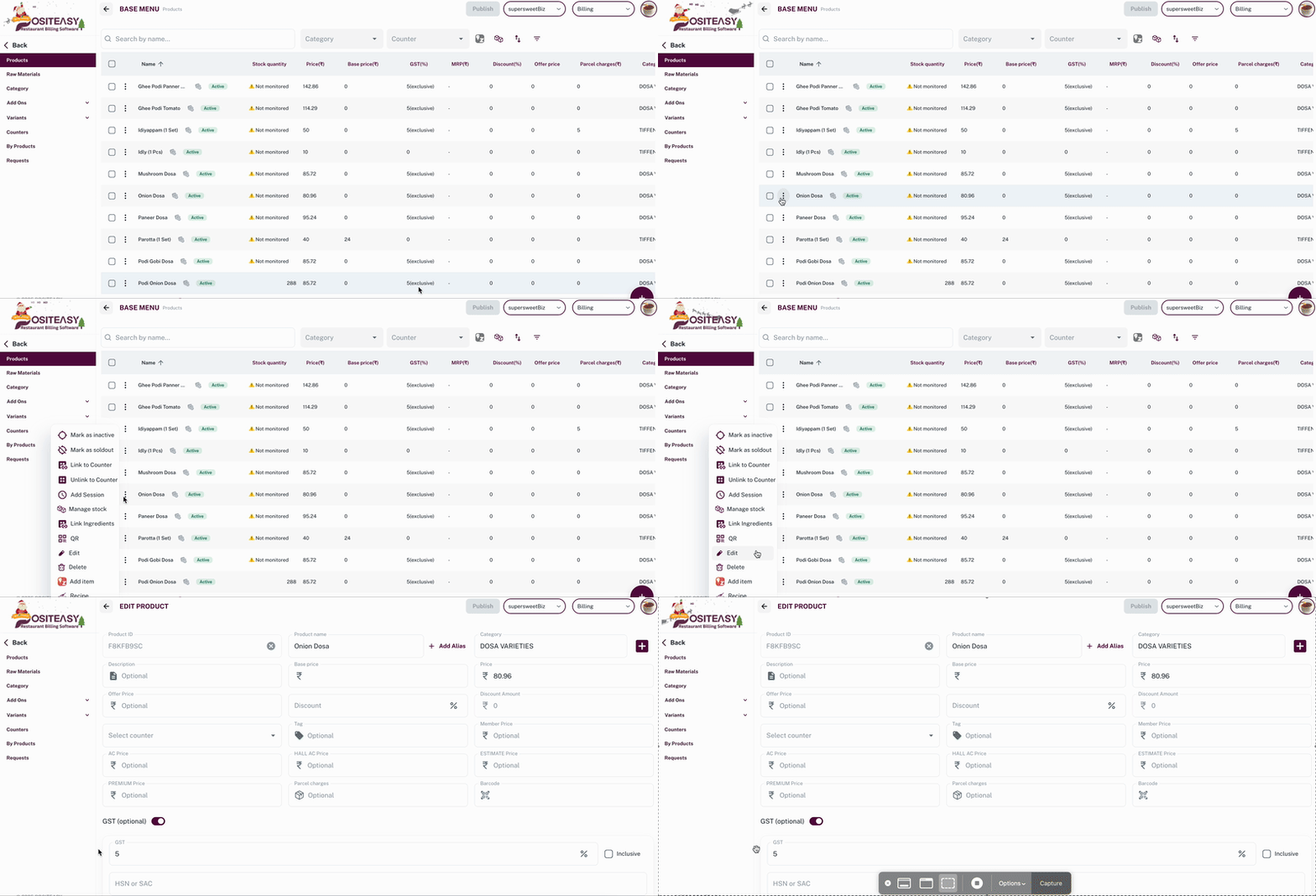
- அந்த பொருளின் அருகில் உள்ள மூன்று புள்ளிகள் (⋮) ஐகானை தேர்வு செய்து Edit கிளிக் செய்யவும்
- Edit Product படிவம் தற்போதைய விவரங்களுடன் திறக்கப்படும்
படி 3: அடிப்படை விவரங்கள் திருத்தம்
Basic Details பகுதியில்:
- பொருள் பெயர் – POS / ரசீதில் காணப்படும் பெயரை மாற்றலாம்
- விளக்கம் (விருப்பத்தேர்வு) – சுருக்கமான விளக்கத்தை மாற்றலாம்
- கேடகரி – வேறு கேடகரிக்கு மாற்றலாம் அல்லது Add Category

மூலம் புதிய கேடகரி உருவாக்கலாம்
பொருள் பெயர் எப்போதும் தனித்துவமாகவும் சரியாகவும் இருக்க வேண்டும்.
அப்படியானால் மட்டுமே தேடல் மற்றும் அறிக்கைகள் சரியாக இயங்கும்.
படி 4: விலை மற்றும் GST புதுப்பித்தல்
Pricing பகுதியில்:
-
Price தேவையானால் மாற்றவும்
-
GST (Enable / Disable, %, Inclusive / Exclusive) மாற்றலாம்

-
(விருப்பத்தேர்வு) Base Price புதுப்பிக்கலாம்
(மார்ஜின் / இலாப அறிக்கைகளுக்காக)
படி 5: கவுண்டர் மாற்றம் (விருப்பத்தேர்வு)
- பொருள் எந்த கவுண்டருடன் இணைக்கப்பட வேண்டும் என்பதை மாற்றலாம்
பார்க்கவும்:
கவுண்டர் சேர்த்தல்
படி 6: வேரியண்ட்ஸ் திருத்தம் (இருந்தால்)
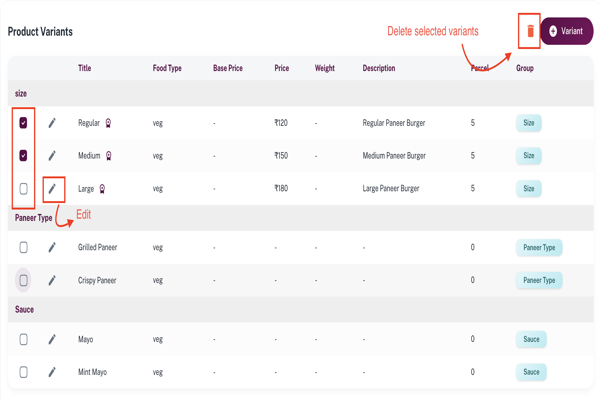
- Variants பகுதியில் ஸ்க்ரோல் செய்யவும்
- Add Variant – புதிய வேரியண்ட் சேர்க்க
- Edit – விலை, உணவு வகை, பார்சல் கட்டணம் மாற்ற
- Trash – தேவையில்லாத வேரியண்ட் நீக்க
- ஒரே ஒரு வேரியண்ட் மட்டும் Primary Priced Variant ஆக இருக்க வேண்டும்
படி 7: Addonகள் திருத்தம் (இருந்தால்)
-
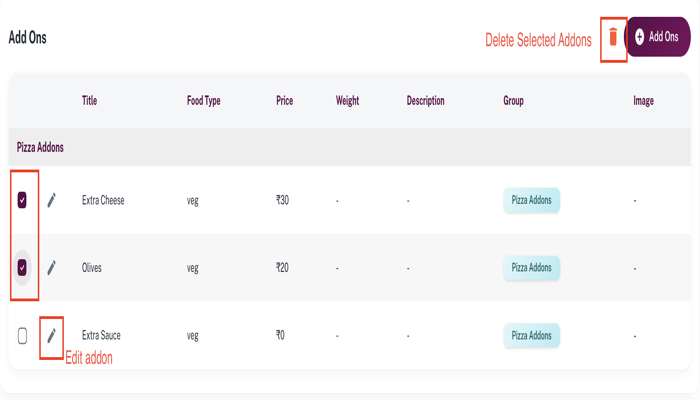
Addons பகுதிக்கு ஸ்க்ரோல் செய்யவும்
-
Add Addons – புதிய Addon சேர்க்க
பார்க்கவும்:
பொருளுக்கு Addonகள் சேர்த்தல் -
Edit – விலை / வகை மாற்ற (₹0 அனுமதி)
-
Trash – தேவையில்லாத Addon நீக்க
படி 8: மாற்றங்களை சேமித்தல்
- அனைத்து மாற்றங்களையும் சரிபார்க்கவும்
- Update Item தேர்வு செய்து சேமிக்கவும்
இந்த முறையில், இன்வென்டரியில் உள்ள பொருட்களை துல்லியமாக மற்றும் தேவைக்கு ஏற்ப திருத்தி நிர்வகிக்கலாம்.